Prompt: how to generate the perfect school label with AI
- Gemini
Translated from the Portuguese original.Read the original
In this prompt
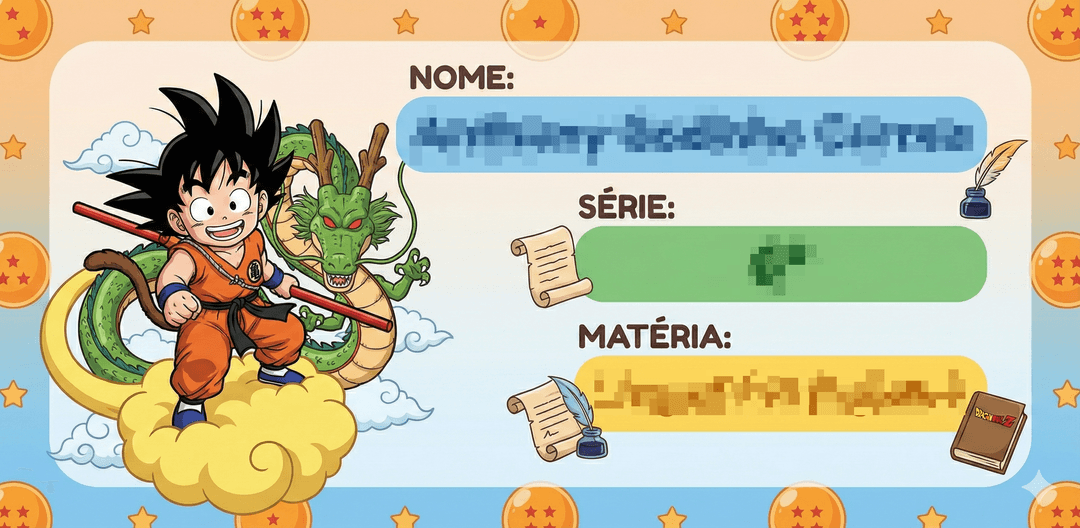
⚙️ How to use this Prompt
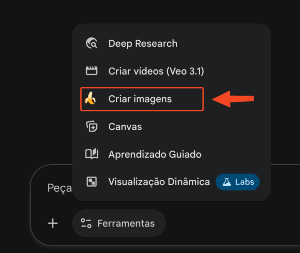
1 - Open Google Gemini in your browser.
In the start menu, select “Create images”.
2 - Copy the whole prompt below.
3 - Before sending, edit the prompt and replace wherever it says ADD with:
- child's name
- grade / year
- subject
- theme or character
4 - Paste the filled-in prompt into the image generation field.
5 - Generate the image and wait for the result.
⬇️ Copy the full prompt below ⬇️
Create an illustration for a children's school label, already containing legible text in the image.

Required information to display on the label:

Child's name: ADD
Grade / school year: ADD
Subject: ADD
Character or visual theme: ADD

Composition:

Horizontal rectangular format, ideal for school labels.
Rounded corners.
The text must be clearly visible, well organized, and easy to read.
Child's name highlighted.
Grade/year and subject on separate lines.
A friendly character or mascot related to the theme, without competing with the text.

Visual style:

Childlike, cheerful, and colorful.
Digital illustration in cartoon style.
Clean lines, bright, high-contrast colors.
Kid-friendly typography, legible even at small sizes.

Background:

Simple background or with a soft pattern.
Good legibility for printing.
Quality: high resolution, ready to print on school labels.