Guide: your own Roblox game with Claude
Connect Claude to Roblox Studio, describe your game in plain words and publish it. With a ready request to paste.
- Claude
Translated from the Portuguese original.Read the original
In this guide
You describe the game in plain words and Claude builds it inside Roblox Studio, ready to publish.
You don't need to know how to code. Since March 2026, Roblox Studio ships with a connector for Claude: you just switch it on at both ends.
✅ WHAT YOU'LL NEED
- A computer running at least Windows 10 or macOS 10.14.
- A Roblox account (free).
- Roblox Studio (free). It's Roblox's app for making games.
- Claude Code, which comes with every paid Claude plan (Pro costs US$ 20 a month). If you only have Claude Desktop, you can still do it: see the extra step at the end.
🧩 STEP 1: Install Roblox Studio
Download it from Roblox's official page, install it and sign in with your Roblox account.
On the start screen, under Open a Template, click Baseplate (an empty floor). That's where Claude will build the game.
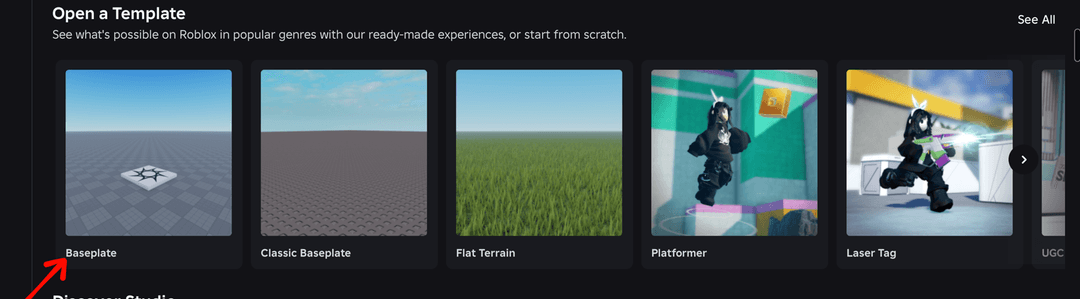
💻 STEP 2: Install Claude Code
Open Terminal (PowerShell on Windows) and run the installer.
On Mac:
curl -fsSL https://claude.ai/install.sh | bash
On Windows:
irm https://claude.ai/install.ps1 | iex
Then create a folder for the game and go into it:
mkdir meu-jogo-roblox
cd meu-jogo-roblox
🔌 STEP 3: Turn on the connector in Roblox Studio
- In the bottom right corner of Studio, click MCP off. The Assistant Settings window opens, already on MCP Servers.
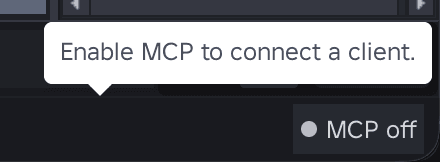
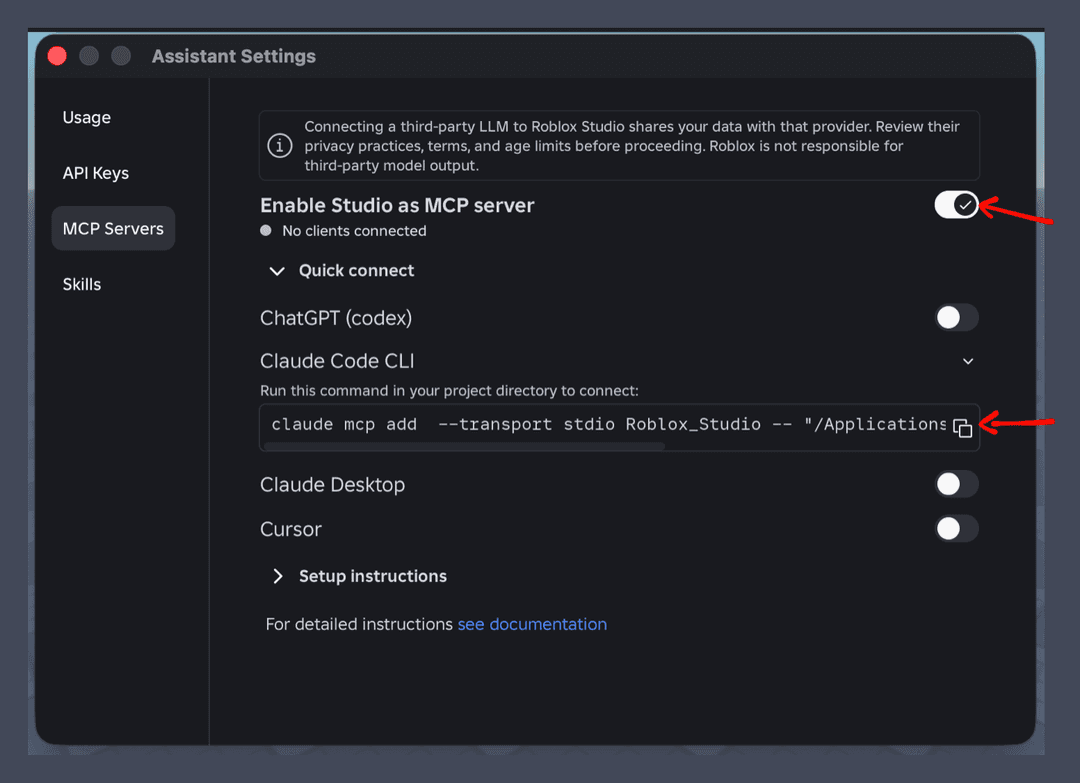
- Turn on the Enable Studio as MCP server switch.
🤝 STEP 4: Connect Claude
In the same window, under Quick connect, click Claude Code CLI and copy the command with the button next to it. Paste it and run it in the terminal, inside the meu-jogo-roblox folder. On Mac, the command is this one:
claude mcp add --transport stdio Roblox_Studio -- "/Applications/RobloxStudio.app/Contents/MacOS/StudioMCP"
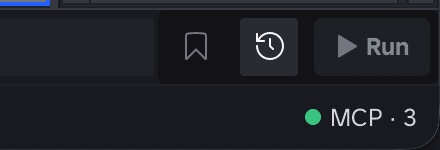
To check: the MCP off in the bottom corner turns into MCP with a green dot.
In the terminal, in the same folder, type claude to open Claude Code and then /mcp: Roblox_Studio shows up with a green ✔.

🎮 STEP 5: Ask for the game
With Studio open on the Baseplate, paste a request into Claude Code. This one is an example of an obby (a platform jumping game); swap it for the game you want:
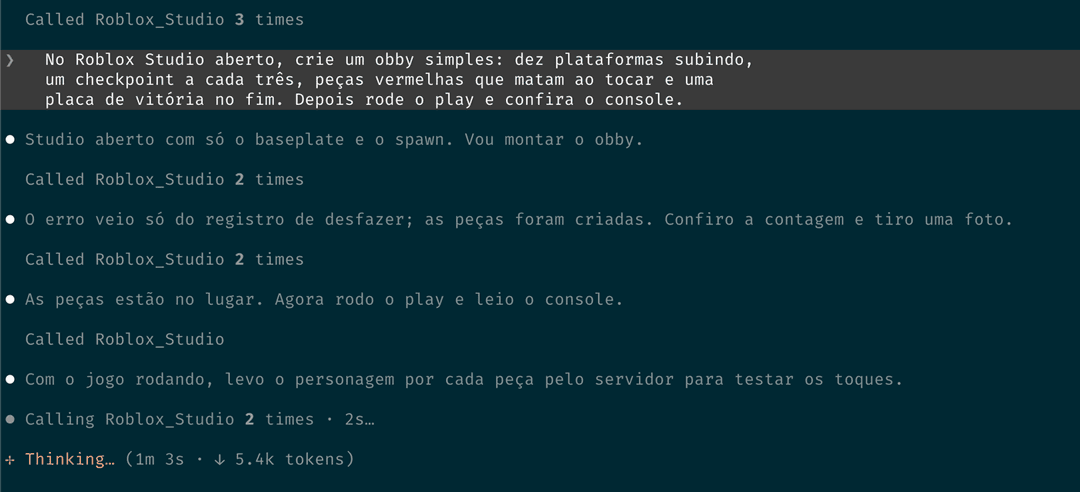
In the open Roblox Studio, build a simple obby: ten platforms going up, a checkpoint every three, red parts that kill on touch and a victory sign at the end. Then run play and check the console.
Claude builds the parts in Studio while you watch. Then it hits play on its own and tests the game.
To change something, ask in the same chat, the way you'd say it: "put the platforms further apart".
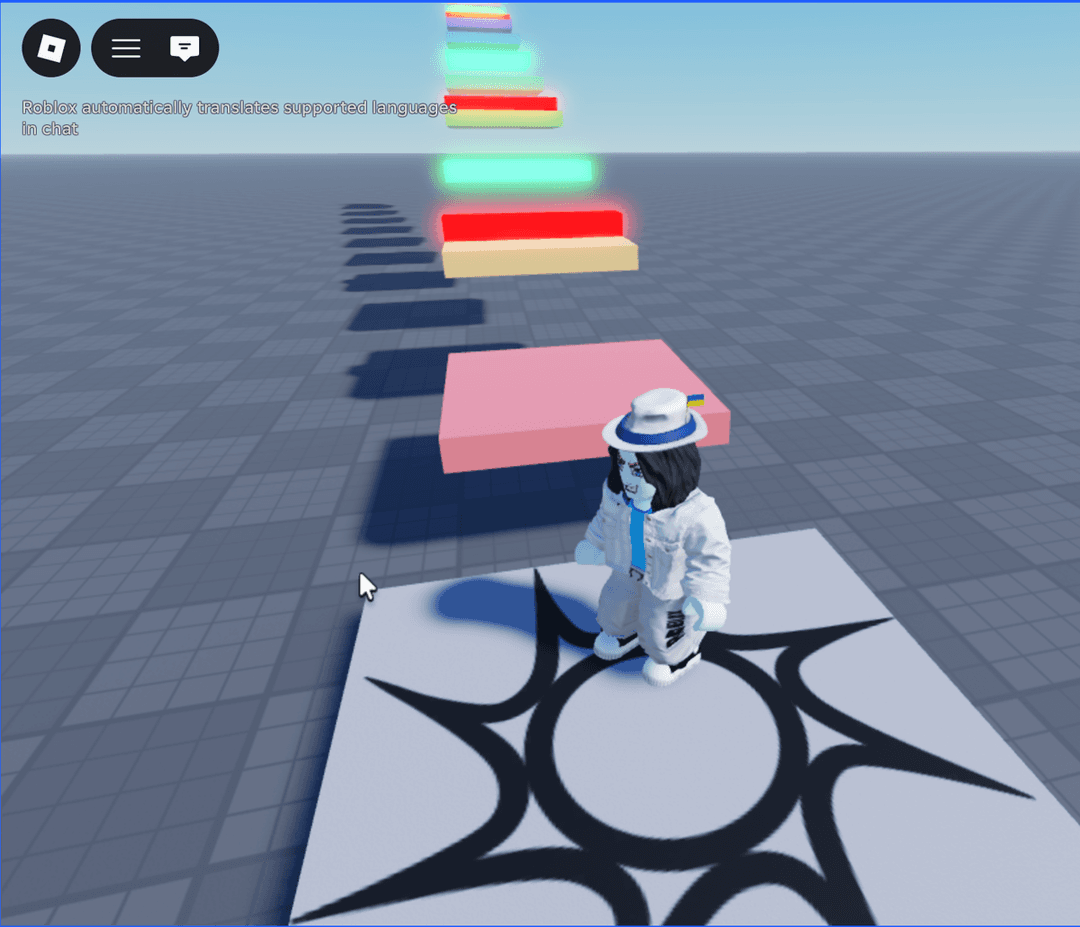
Hit Play in Studio to try the game before you publish.
🚀 STEP 6: Publish
- In Studio, click File and then Publish.
- In the window that opens, name the game and click Save. The game is saved to your account, still private.
- To open it to everyone, click Continue in the publish window, answer the maturity questionnaire and click Publish.
The official walkthrough, with screenshots, is on Roblox's publishing page.
⚠️ BEFORE YOU PUBLISH
- For the game to be public, the account has to be at least 2 days old, in good standing and age checked (by face or by ID). The game goes out to players aged 16 and up, and you can release up to 5 new games a day.
- To earn real money from the game's Robux (DevEx), you need to be 13 or older and have earned 30,000 Robux. The rules are in Roblox's help center.
- Don't copy other people's games. Roblox takes the game down when the owner complains and suspends repeat offenders.
🛠️ EXTRA STEP: Use Claude Desktop instead of Claude Code
Download Claude Desktop from claude.ai/download. In step 4, instead of the command, turn on the Claude Desktop switch under Quick connect, then close and reopen Claude Desktop. Then ask for the game in a new chat there.
If Claude Desktop doesn't show up in Quick connect, connect it by hand: in Claude Desktop, open Settings, Developer, Edit Config, and paste this into the file that opens.
On Mac:
{
  "mcpServers": {
    "Roblox_Studio": {
      "command": "/Applications/RobloxStudio.app/Contents/MacOS/StudioMCP"
    }
  }
}
On Windows:
{
  "mcpServers": {
    "Roblox_Studio": {
      "command": "cmd.exe",
      "args": [
        "/c",
        "%LOCALAPPDATA%\\Roblox\\mcp.bat"
      ]
    }
  }
}
If the file already had other apps inside mcpServers, put Roblox_Studio next to them, separated by a comma. One comma too many or too few and Claude loads nothing. Save and restart Claude Desktop.