Guide: a 3D simulator of any machine with Claude
A free skill gets Claude Code to build a machine in 3D that you can spin, open up and take apart piece by piece, and it records the video too.
- Claude
Translated from the Portuguese original.Read the original
In this guide
You describe a machine, send a picture of it, and Claude Code builds a 3D simulator on a single page: the machine runs in the middle, the panels show live numbers, and every part has a button that pulls it away from the rest.
The skill is called teardown and it's by developer Elvar (@elvar_official). It's free, under the MIT license. The octopus below came out of it.
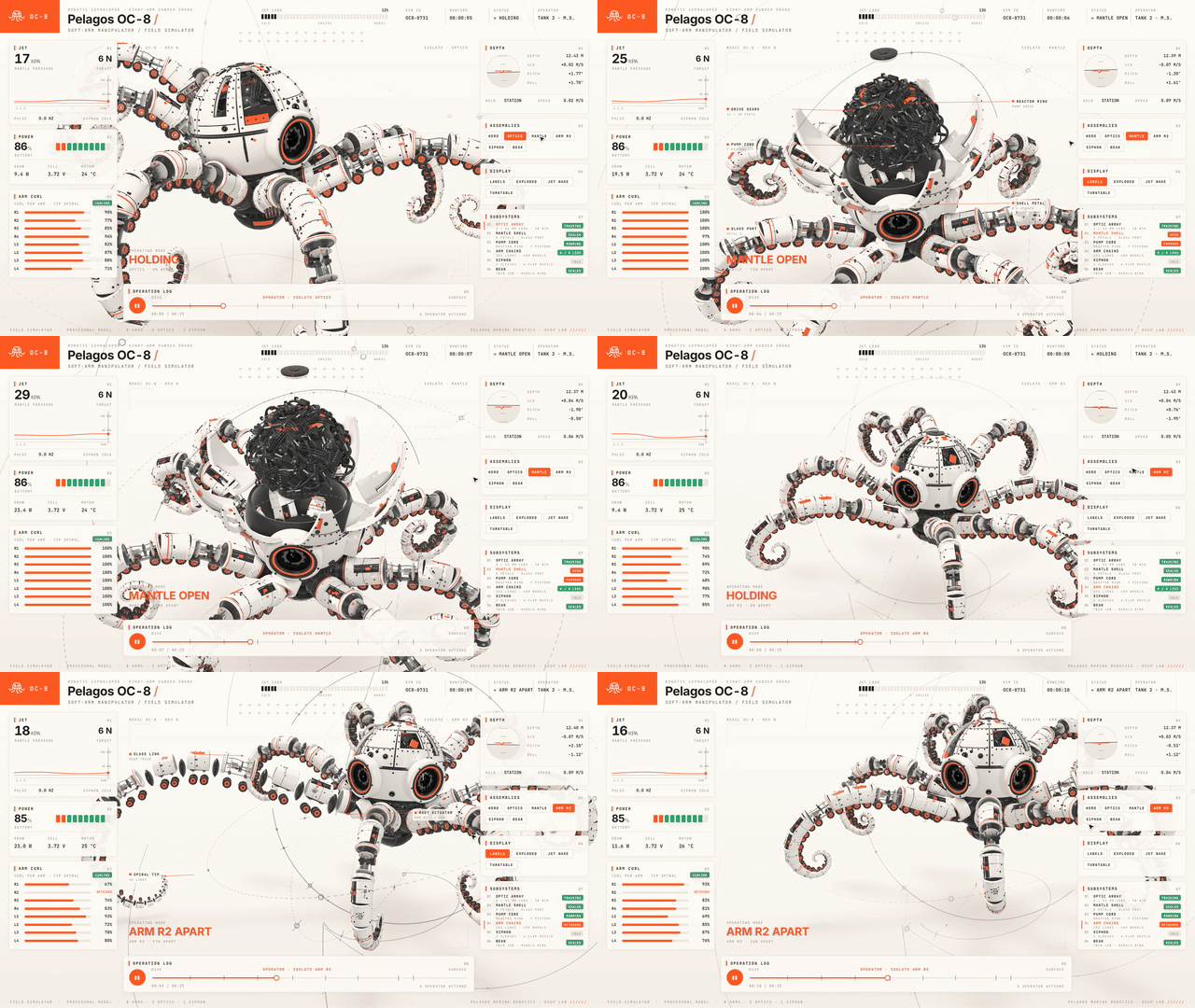
You don't need to know how to code. You'll paste two commands and one request in plain English.
✅ WHAT YOU'LL NEED
- Claude Code, which comes with Claude's paid plans. It writes the code for the machine.
- Node.js version 20 or newer. It runs the skill.
- FFmpeg and Python 3, only if you want the video and the sound. If you don't have them, ask Claude Code itself: "install ffmpeg and python 3 for me".
If you've never installed Claude Code, start with the guide to editing reels with Claude Code. Steps 1 and 2 there apply here too.
👉 Tip: a skill is a folder of instructions Claude Code reads before it starts working. This one teaches it how to build the machine, how to make it look good and how to check the result.
👀 STEP 1: SEE IT IN YOUR BROWSER FIRST
Elvar left six simulators online, free. Open one and press the buttons to see what you're about to make: visual-learning.app.
On a phone, the first load takes a few seconds.
🧩 STEP 2: INSTALL THE SKILL
Open the terminal and paste the command from his repository:
npx skills add elvarofficial/teardown -g -a claude-code
Then, just once, finish the install:
cd ~/.claude/skills/teardown && npm install && npx playwright install chromium
The second command downloads a windowless Chrome, which the skill uses to photograph every frame.
📸 STEP 3: FIND A PICTURE OF THE REAL MACHINE
Don't skip this step. Elvar says he asked for a pangolin, an armadillo and a scorpion from a description alone, and all three came out looking like toys. When he showed it a reference video, Claude rebuilt the machine panel by panel.
Pick a machine with moving parts and find an image of it: a cutaway drawing from a manual, a photo or a short clip. Ideas he hasn't built yet:
- a bicycle derailleur shifting through the gears
- the escapement of a mechanical watch
- a car differential on a turn
- a sewing machine making a stitch
- an excavator arm filling its bucket
Save the image in a new folder.
💻 STEP 4: ASK FOR THE SIMULATOR
Open the terminal in that folder, type claude and then /teardown. Paste the request, swapping what's in brackets:
Build a 3D simulator of [a sewing machine making a stitch] that I can take apart. Use the image [maquina.jpg] in this folder as the reference and compare against it before animating. I want a panel with live numbers and a button for every part. At the end, record a 20-second video of the tour around the machine.
The result is an HTML file that opens offline, in the browser.
🔍 STEP 5: CHECK THE FRAMES
Claude can't watch video. It checks its own work by looking at still pictures, one for each moment of the video, and fixes what came out wrong. You can look at the same pictures and point out the flaw:
Show me the frame sheet for every moment of the video.
Found a part going through another, or a color vanishing into the background? Say which frame and what's wrong, and ask it to render again.
⚠️ COMMON MISTAKES
- The machine came out looking like a toy: it was missing a reference. Go back to step 3 and send a photo or a drawing of the real machine.
- The page is slow on a laptop: a weak graphics card takes a while to load. After the first few seconds, the page lowers its own quality so it doesn't freeze.
Repository with the three examples that come with the skill (V8 engine, Cessna landing gear and the Strandbeest): github.com/elvarofficial/teardown.